Question

Issue with Progress project

  • September 3, 2026
  • 3 replies
  • 66 views

Hi Team,

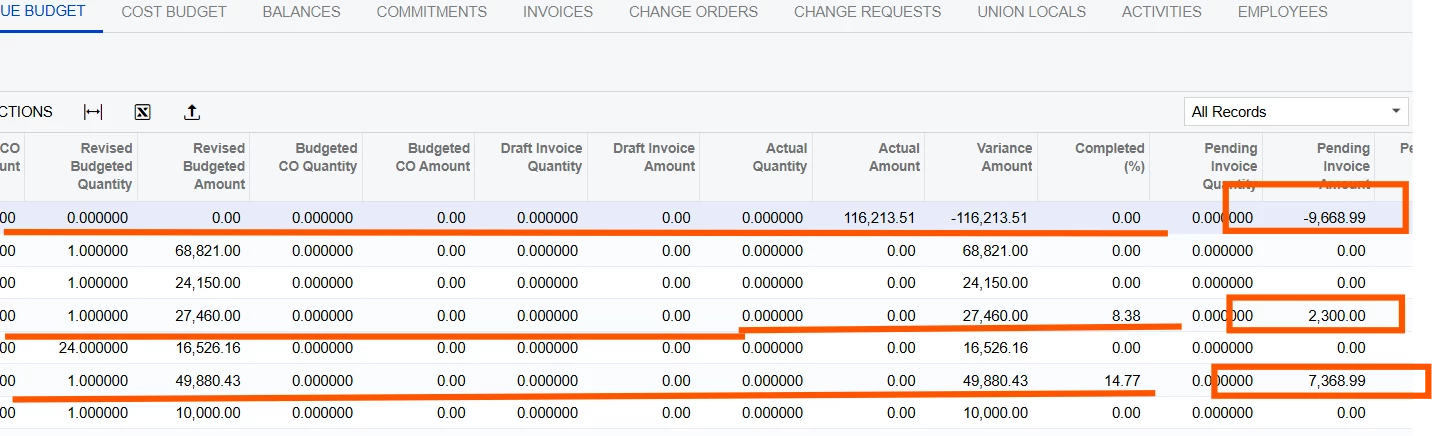
We have an issue with a progress draw project in Acumatica. After the second progress draw invoice was processed, there are new revenue budget lines created and negative amounts sitting in the pending invoice amount column. The positive amounts entered in the pending invoice amount column correspond to what the actual amount is currently short by.  The net impact is $0.


The new lines were created by the system after the second progress draw was done.
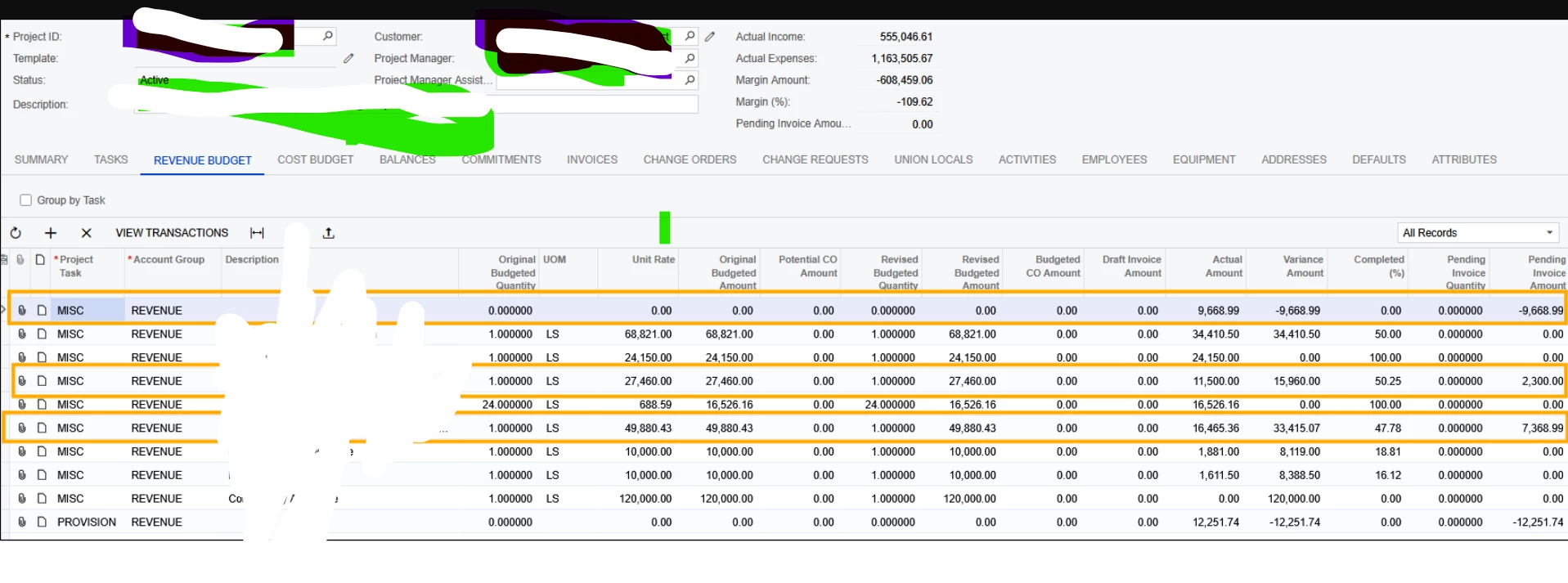
 

We tried running billing and invoicing the amounts, but they didn’t clear out.


Why did this happen? And how do we fix it so we can process the next progress draw?

Please advise

3 replies

Eric Ratté
Jr Varsity I
Forum|alt.badge.img+1
  • Jr Varsity I
  • September 3, 2026

This is a known Acumatica progress-billing pattern. The second draw did not “invent” revenue out of nowhere — it posted billed actuals against a different project budget key than the original revenue budget lines. The pending positives and negatives are the formula trying to reconcile that split. Net $0 is expected.

Why it happened

Progress billing calculates pending as:

Pending Invoice Amount = Revised Budgeted Amount × Completed(%) / 100 − Draft Invoice Amount − Actual Amount

After draw 2, that formula is running on two sets of lines instead of one:

Line type Typical picture Pending result
Original budgeted lines Have revised budget / completed %, little or no Actual Positive pending (the “short” amount you noticed)
New system-created lines Zero or tiny budget, Actual sitting here Negative pending

Acumatica creates a new revenue budget line whenever a pro forma or AR line does not match an existing line on the full budget key:

  • Project task
  • Account group
  • Inventory item
  • Cost code

That is by design. Common ways the key breaks on the second draw (first draw often looks fine):

  1. Revenue Budget Level vs inventory item — Project is set to Task or Task + Cost Code, but original lines have an Inventory ID. The invoice line went out as N/A (or a different item), so Actual posted to a new line.
  2. Projects Preferences → Revenue Budget Update = Detailed — any unmatched combo creates a new line instead of rolling into a summary N/A line.
  3. Pro forma edited on draw 2 — line added or inventory/cost code changed on Progress Billing tab. If no matching budget line exists, the system adds one.
  4. Completed % or Pending Amount changed after the first invoice — formula then generates an offset. If actuals already live on the other key, you get the +/- pair.
  5. AR invoice or credit created outside project billing — those documents do not update Pending the same way pro forma progress billing does.

Billing the leftover pending amounts often does not clean this up, because the next invoice can hit the same mismatched key again, or a $0 net invoice never moves Actual onto the budgeted lines.

What to check first (do not skip)

On Projects (PM301000) for this job:

  1. Summary tab
    • Revenue Budget Level
    • Billing Rule
    • Create Pro Forma Invoice on Billing
  2. Revenue Budget tab — for original vs new lines compare:
    • Task / Account group / Inventory ID / Cost code
    • Revised Budgeted Amount
    • Completed (%)
    • Actual Amount
    • Draft Invoice Amount
    • Pending Invoice Amount
  3. Invoices tab — open both progress-draw pro formas. On the Progress Billing tab, compare each line’s task / inventory / cost code / account group to the original budget lines.
  4. Projects Preferences (PM101000) → Revenue Budget Update (Detailed vs Summary).
  5. Confirm there is no open / on-hold pro forma still holding Draft Invoice Amount.

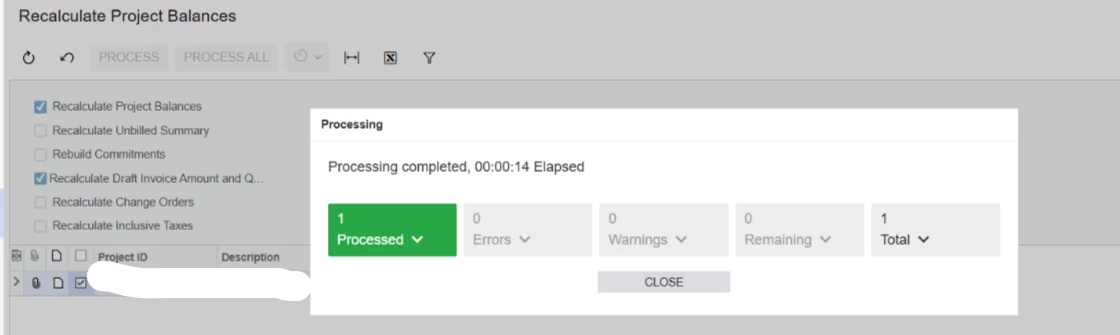
Also run Actions → Validate / Recalculate Project Balances. On Recalculate Project Balances (PM504000) select this project and check Recalculate Draft Invoice Amount and Quantity. That rebuilds Actual and Draft from the underlying documents. It will not merge mismatched keys by itself, but it will show whether the numbers are just out of sync.

How to fix it so the next draw can run

Goal: one clean set of budget lines, Pending = 0 (or only the real next-draw amount), Actual sitting on the budgeted lines.

1. If net pending is truly $0 and you do not need a correcting invoice

On the Revenue Budget tab, set Pending Invoice Amount = 0 on both the positive and negative lines, then save.

Community guidance for leftover negative pending is the same: zero it in the grid after you confirm it is not a real billing adjustment. Do this after Recalculate Project Balances so you are not hiding a real draft invoice.

Then enter the next draw’s Completed % (or Pending) only on the original budgeted lines.

2. If Actual is on the wrong (new) lines

Do not just delete lines that have Actual Amount. Recalc will recreate them.

Preferred path:

  • Confirm the new lines’ inventory/cost code from the second pro forma / AR invoice.
  • If the new lines are the “wrong” key (N/A vs a real item, extra cost code, etc.):
    • Zero Pending on all of them.
    • Keep the original budgeted lines as the billing lines going forward.
    • For reporting, Actual will stay split unless you move it (sometimes via a project transaction). Recalculate after any structural change.

If Revenue Budget Level is Task-only, original lines should use Inventory ID = N/A. Budget lines with a real item under a Task-only level are a common source of this exact split.


@Eric Ratté , Thanks for the response

I will review it and update you.


Hi ​@Eric Ratté ..

I have recalculated the balance for a specific project and also see the value still shows. Shall I delete

How to resolve the next step