Answer

AP efficiency

  • January 26, 2023
  • 2 replies
  • 138 views

Forum|alt.badge.img

Hello Acumatica Users :)

As it relates to AP automation, do any of you know if there is an auto acquire of images from email into Accounts Payable with templates in Acumatica?   Also, I am wondering if anyone figured out how to get the AP invoice images to pop up on another screen.  (I upvoted Erica’s post on this from 2 years ago - currently under “Pending Review”) 

Thanks!

Kay Howe

740-418-5250 cell
Best answer by DavidEichner

Hi @khowe86 

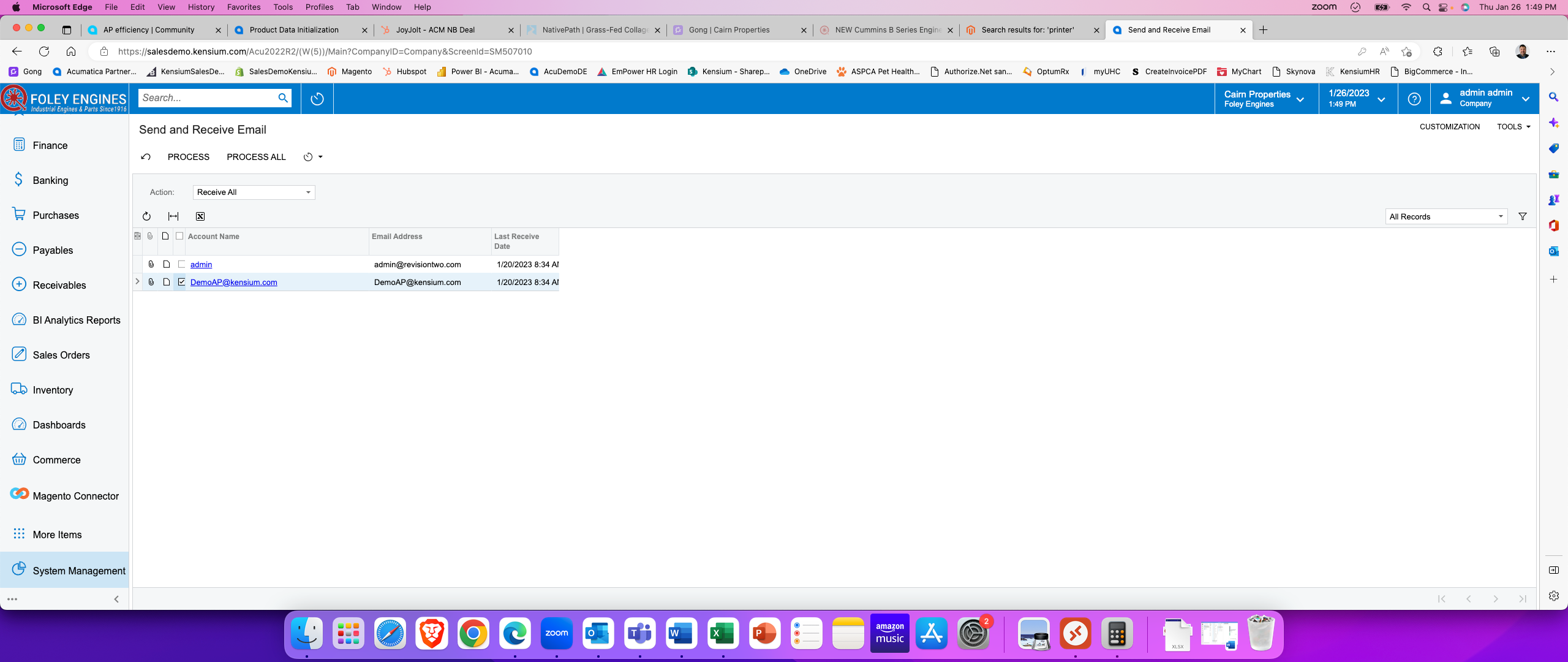
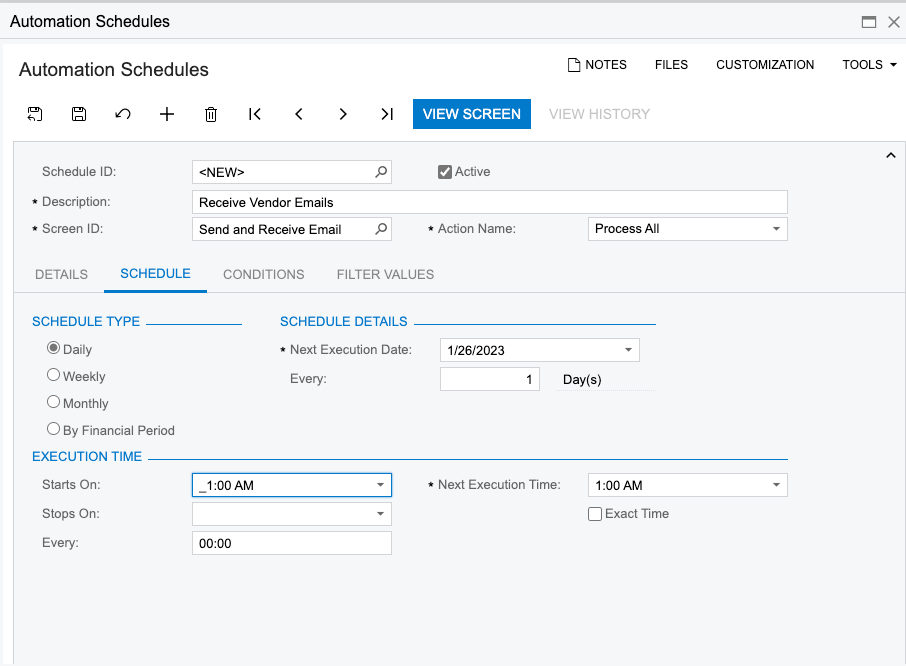
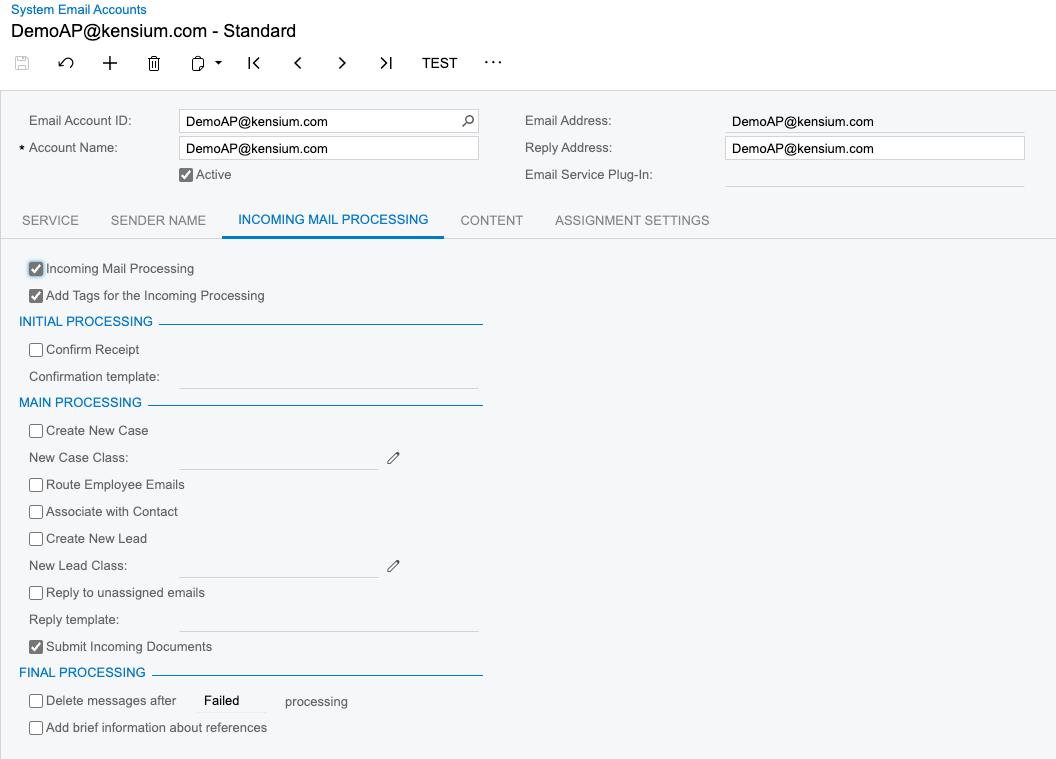
You can setup a system email account for your incoming vendor invoices (i.e. payables@yourcompany.com) with valid credentials and then check the Incoming Mail Processing, Add Tags for the Incoming Processing, and the Submit Incoming Documents checkboxes. After that, set up an automation schedule for Send/Receive Emails with Receive All on the dropdown list.  I’d recommend running it at night


2 replies

ChrisWeidner
Varsity I
Forum|alt.badge.img
  • Varsity I
  • January 26, 2023

@khowe86 , 

PDF - Sidebar

We use the PDF Annotator that will show PDF’s as a sidebar while viewing a document (AP, AR, Project, etc..). The directions are straightforward and will allow users to view the document & the pdf in a single screen (1-click).


For AP Automation, We use the Incoming Documents screen (AP301100). This will use Acumatica’s AP Document Recognition tool. This speeds up our AP document creation time. 

  • This can also be set up to automatically pull emails into the “Incoming Documents” screen (AP301100). So instead of clicking and dragging the PDF, you just process the email in Acumatica via the AP Document Recognition tool.
  •  

  •  


DavidEichner
Captain II
Forum|alt.badge.img+13
  • Captain II
  • Answer
  • January 26, 2023

Hi @khowe86 

You can setup a system email account for your incoming vendor invoices (i.e. payables@yourcompany.com) with valid credentials and then check the Incoming Mail Processing, Add Tags for the Incoming Processing, and the Submit Incoming Documents checkboxes. After that, set up an automation schedule for Send/Receive Emails with Receive All on the dropdown list.  I’d recommend running it at night