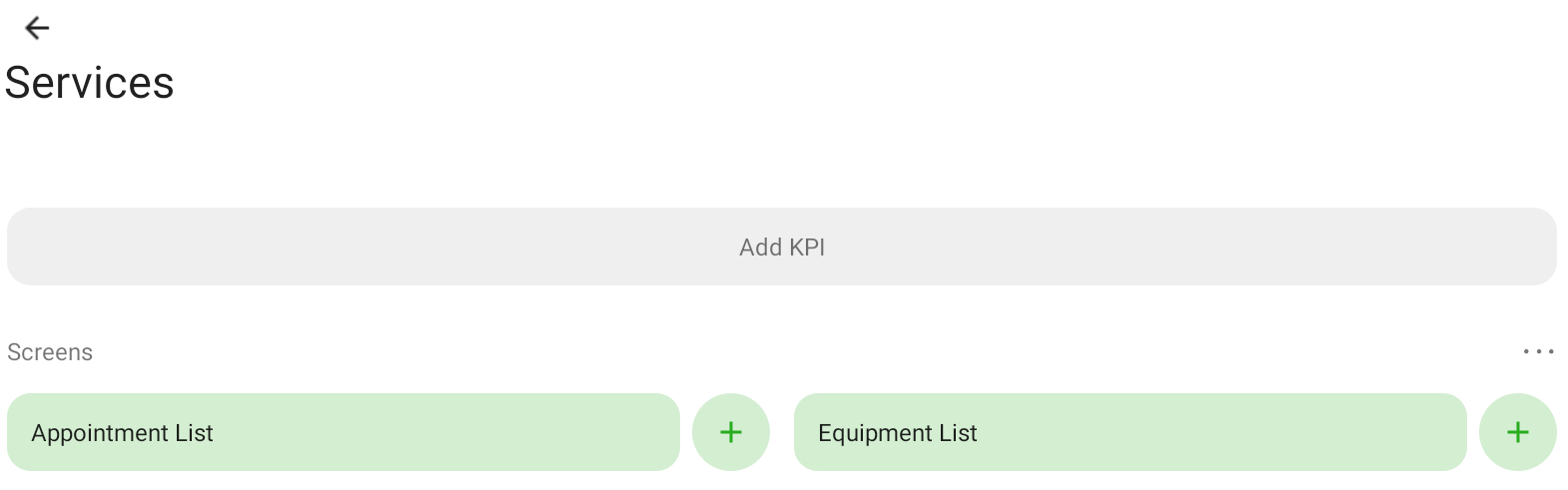
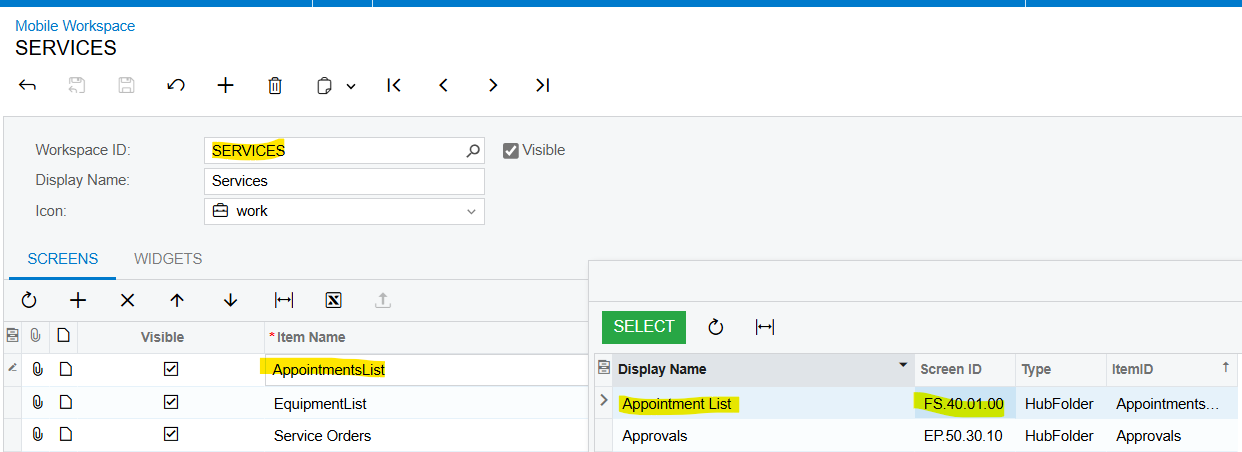
In mobile app we have a appointment listing screen under services.
We need to add project and default project task field in listing screen.
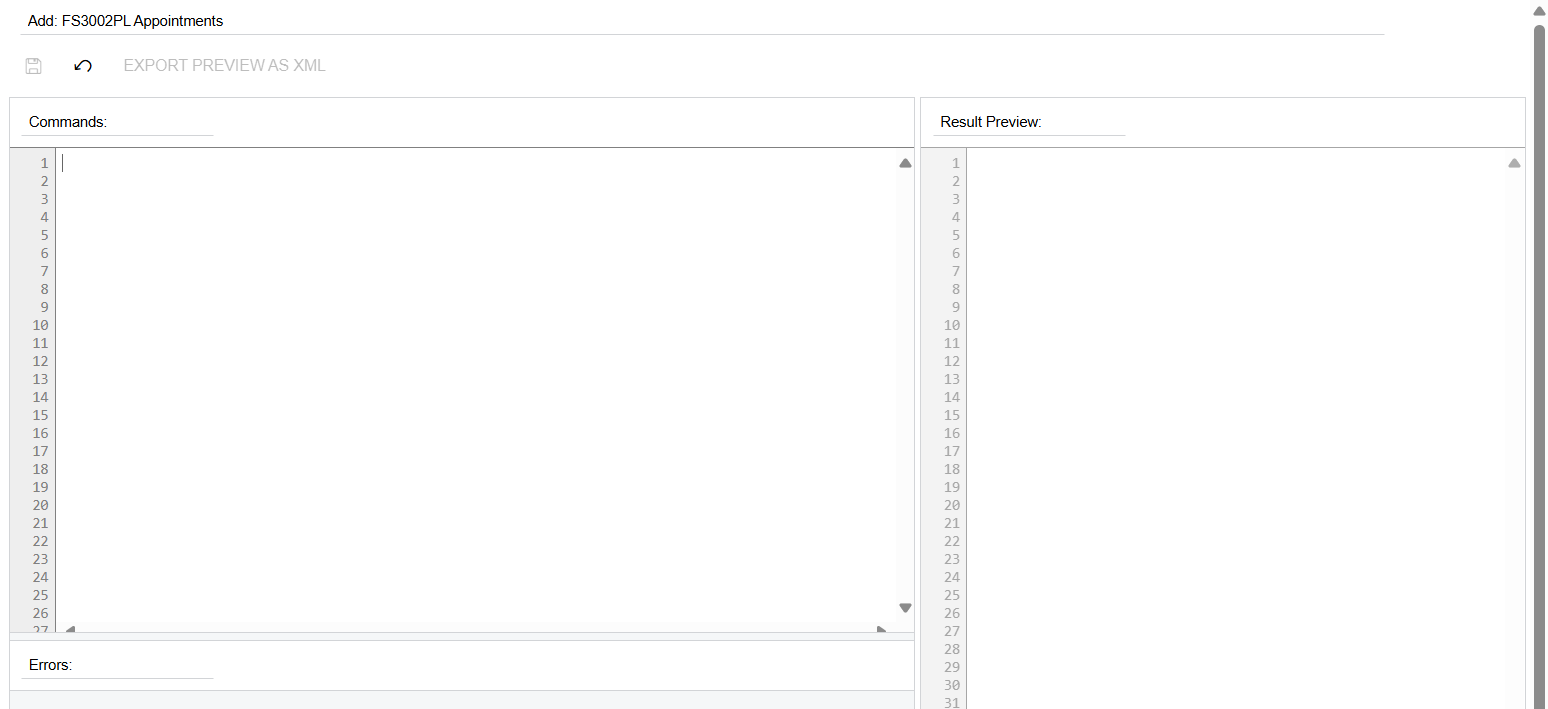
I am able to open listing screen in app but I cannot find any existing listing screen in mobile app customization screen.
Web portal screen ID: FS3002PL
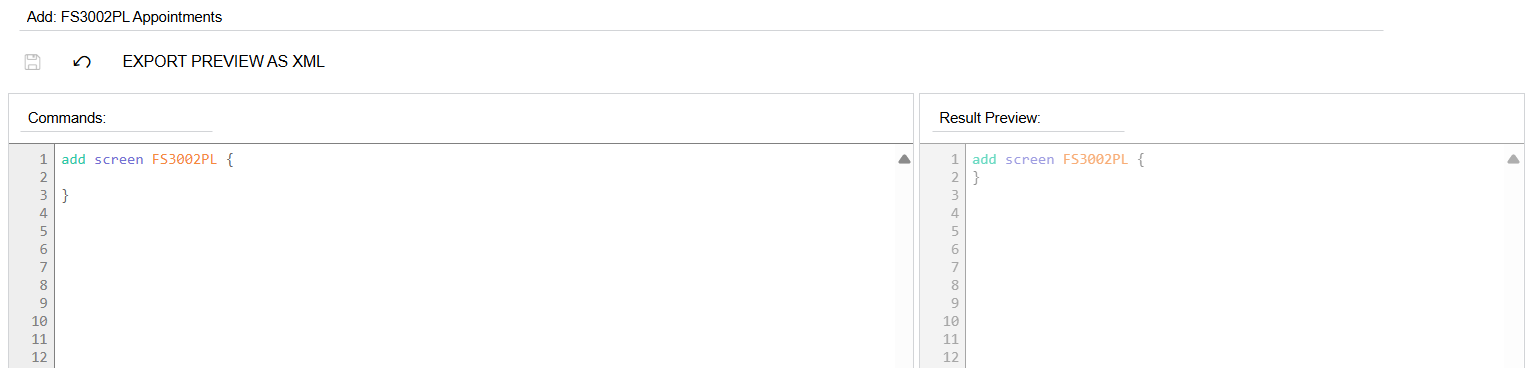
So, I added it.
I am not following how can we access this screen and how to add fields.
Best answer by dcomerford
@bjani23 You will need to do something like below. The name in the “” will have to match the name of the field on the FS400100 desktop screen. You must have a customisation in place as Project and Default Task are not on the appointment but on the appointment line.
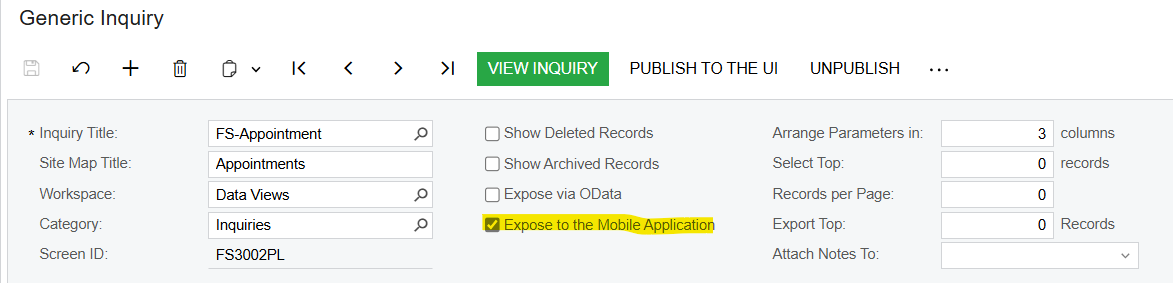
@bjani23 It looks like you are just exposing the Appointment GI or a similar GI to the mobile app so if you add the fields to the Result grid of the GI you should see them on the app
@bjani23 It looks like you are just exposing the Appointment GI or a similar GI to the mobile app so if you add the fields to the Result grid of the GI you should see them on the app
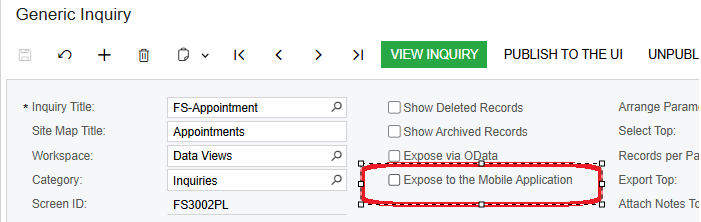
I already did.
But after that there is no value in mobile customization.
@bjani23 selecting the tick on the GI wont create the scripting for you. Here is a good article showing you how to have more control over what appears on the moblle app
@bjani23 selecting the tick on the GI wont create the scripting for you. Here is a good article showing you how to have more control over what appears on the moblle app
@bjani23 You will need to do something like below. The name in the “” will have to match the name of the field on the FS400100 desktop screen. You must have a customisation in place as Project and Default Task are not on the appointment but on the appointment line.
@bjani23 You will need to do something like below. The name in the “” will have to match the name of the field on the FS400100 desktop screen. You must have a customisation in place as Project and Default Task are not on the appointment but on the appointment line.