Question

Inventory ID Segmented Key Error

  • October 13, 2025
  • 3 replies
  • 43 views

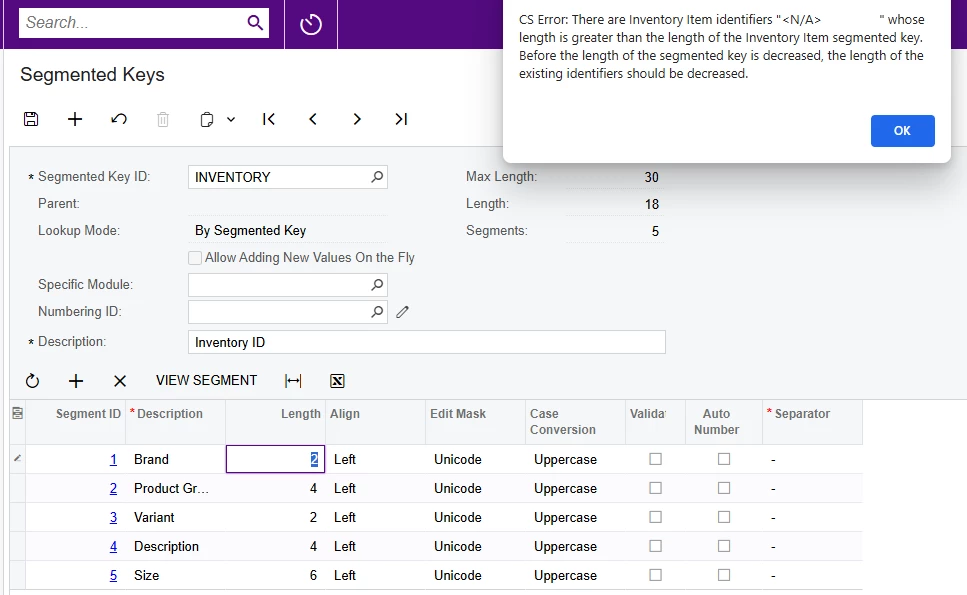
We are implementing Acumatica and want an Inventory ID with 5 Segments. We have no Items created yet. The system will not allow me to reduce the first segment to 2 digits (see below). Can anyone help?
 

3 replies

Forum|alt.badge.img
  • Varsity I
  • October 13, 2025

@mbillnz This AI generated answer hope it’s useful

  • Go to:

    • Screen: Inventory → Inventory → Manage → Stock Items

    • Search for "<N/A>" in the Inventory ID field.

  • Edit the <N/A> record:

    • Change its Inventory ID temporarily to something shorter, for example:
      NA or XX.

  • Save the record.

  • Now go back to:

    • Screen: System Management → Configuration → Segmented Keys

    • Select INVENTORY.

  • Try reducing the segment length again (e.g., make “Brand” length 2).

  • Once the change is saved successfully,

    • Go back to Stock Items and rename the item back to <N/A> if needed.


  • Author
  • Freshman I
  • October 13, 2025

Thanks. There are no Inventory Items set up yet, so searching for "<N/A>" returns nothing.


Forum|alt.badge.img
  • Varsity I
  • October 13, 2025

@mbillnz 

Option 1: Safest fix — recreate the Inventory segmented key

Since you have no items created yet, the cleanest and safest method is to delete and recreate the INVENTORY segmented key:

  1. Go to System Management → Configuration → Segmented Keys.

  2. Locate and delete the INVENTORY key (trash-can icon).

    • Acumatica will warn you, but since there are no items, it’s safe.

  3. Recreate a new key:

    • Segmented Key ID: INVENTORY

    • Description: Inventory ID

    • Add your 5 segments with the desired lengths (e.g. Brand = 2, etc.).

  4. Save.

This forces Acumatica to rebuild the default <N/A> record with your new segmentation setup — and resolves the error completely.

Option 2: Fix the existing <N/A> record (if you can’t delete the key)

If deleting isn’t allowed:

  1. Go to Configuration → Segmented Keys for INVENTORY.

  2. Increase the total length temporarily (for example, to 30).

    • Save the record.

  3. Now go to Configuration → Data Views → Generic Inquiry, and create a quick GI on the INItem table to locate the <N/A> record:

    • Table: INItem

    • Fields: InventoryCD, InventoryID

    • Filter: InventoryCD = <N/A>

  4. Once you find it, open it in Stock Items via the hyperlink (or note its ID and open it manually) and rename <N/A> to NA.

  5. Return to Segmented Keys and now reduce the length as desired.

  6. Rename NA back to <N/A> later if you wish.

Option 3: Use SQL (sandbox only!)

If you’re in a test environment and have DB access:


UPDATE INItem SET InventoryCD = 'NA' WHERE InventoryCD = '<N/A>';

Acumatica automatically inserts <N/A> as a default “null” inventory ID, so it still validates its length even though it’s not user-visible until you start using inventory.