


Expand below for Table of Contents.
Acumatica 2025 R2 introduces AI Automation with AI Studio as an Experimental Feature, a secure and configurable framework that allows users to automate field-level updates within documents using AI-driven logic. The system interacts with large language model (LLM) providers such as Anthropic, AWS, Azure, and OpenAI. This feature empowers users to simplify repetitive in-document tasks securely and transparently.
- Read our release notes here.
Overview
What is AI Automation with AI Studio?
AI Automation with AI Studio in 2025 R2 enables users to automate field-level actions within a single Acumatica document using AI-powered logic. It helps streamline repetitive field updates or deletions directly within supported screens. Automation is always user-initiated through an action button.
What version of Acumatica supports AI Automation with AI Studio?
AI Automation with AI Studio is introduced in Acumatica 2025 R2. Users will need to be in 2025 R2 version with Modern UI enabled.
What type of license do I need to try AI Automation with AI Studio?
Customers need to be on Modern UI and on Select, Prime, or Enterprise. It is not available on Essentials or any of the prior product lines.
What business purpose does AI Automation serve?
This feature is designed to assist users in performing consistent data updates or validations on existing records using AI-based instructions, improving speed and reducing manual effort for repetitive actions.
Who can use AI Studio, or what permissions are required to create or edit AI Automations?
AI Studio can be configured (establish connection to LLM provider, build and test prompts) by system administrators, power users, partners, and developers to create or manage prompts and test automations.
Users can use the actions created by the administrators to perform the automation created on those specific screens they have access to.
Getting Started
How much does AI Studio Cost?
AI Automation with AI Studio in 2025 R2 is available as an Experimental Feature until 2026 R1. Note: Your Acumatica instance needs to be licensed for AI Studio to work. Otherwise, you will receive an error.
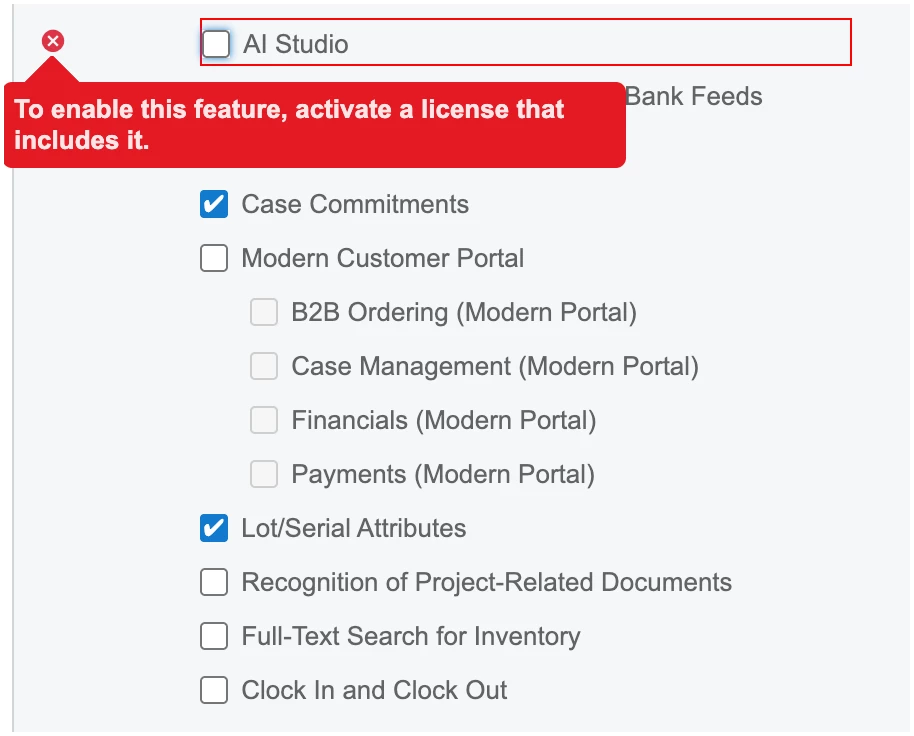
Since AI Studio functionality is available as an Experimental Feature with 2025 R2, it does not currently have a cost. Once it is available as a full release (not as an Experimental Feature) in 2026 R1, there will be a cost for AI Studio.
There will be a separate cost for customers to access one of the 3rd party LLM providers. These agreements, pricing, and payment terms are between the customer and their chosen LLM provider
How do I enable AI Studio in my Acumatica 25R2 instance?
AI Studio can be turned on through Enable/Disable Features (CS100000) screen. Once enabled. Administrators will be granted access to the LLM Connections (ML2010PL) and the LLM Prompts (ML2020PL) screens
Can prompts be shared across companies or tenants?
No, Prompt definitions are stored at the tenant level and are not shared across tenants or instances. Users can, however, copy/paste the prompts across tenants or instances manually.
What types of documents are supported in 25R2?
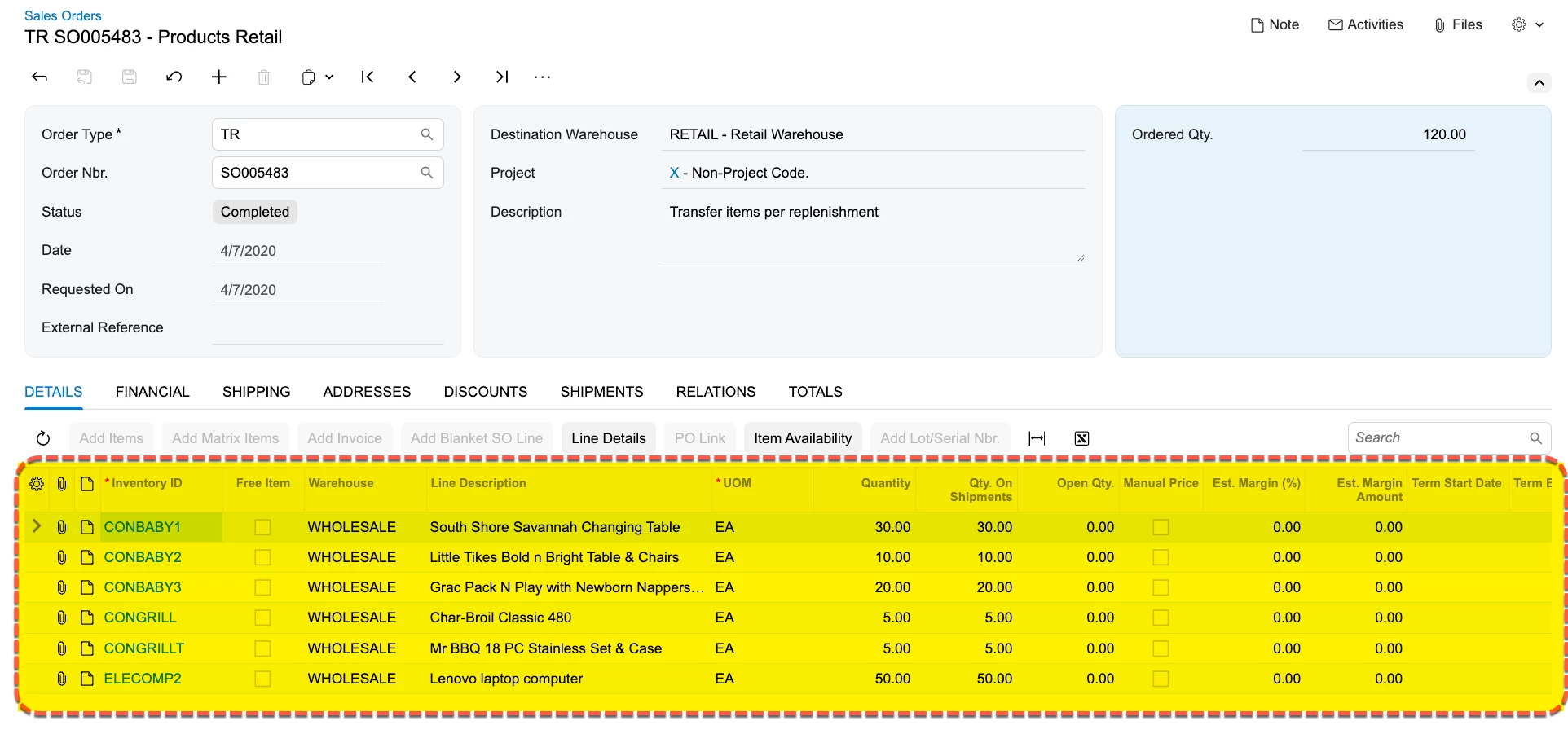
AI Automation currently supports data-entry document types such as Cases, Sales Order, Stock/Non-stock Items, etc. Generic Inquiries, dashboards, reports, processing screens are not currently supported.
The feature focuses on automating actions within a single document, not across multiple records.
Creation or document detail lines are currently not supported. For example, users cannot create or update Sales Order detail lines in the Sales Order screen.
Can I test a prompt before activating it?
Yes. AI Studio includes a built-in interface for testing. In the LLM Prompts screen, administrators can build the prompt, then select an example record, view the generated prompt, test against the example record, and preview the response before enabling the automation for other users.
How can I configure AI Automation with AI Studio?
Please follow the instructions available in Acumatica Release Notes for 2025 R2 (page 183)
Alternatively, you can follow the help documentation on how to configure and get started on AI Automation with AI Studio in 2025 R2.
Capabilities and Limitations
What actions can AI Automation perform within a document?
AI Automation with AI Studio in 2025 R2 can update or delete existing field values within the document. All actions are confined to the record being processed.
Can AI Automation create new records or line items?
No. Creation of new documents, records, or line details is not supported in 25R2.
Can AI Automation with AI Studio analyze or process User-Defined Fields?
No, currently user-defined fields are not supported. This is a known issue and that will be fixed with 2026 R1.
How is AI Automation triggered?
The user must manually initiate automation by selecting an action button available on the supported screen.
Can multiple AI Automations be used on a single document?
Yes, multiple automations can be configured for a single document, but each must be triggered separately.
Can automation rules use data from related entities?
AI Automation operates within the context of the current document only. It does not access or modify related entities in this release.
Technical Architecture and Security
How does AI Studio connect to external LLM vendors?
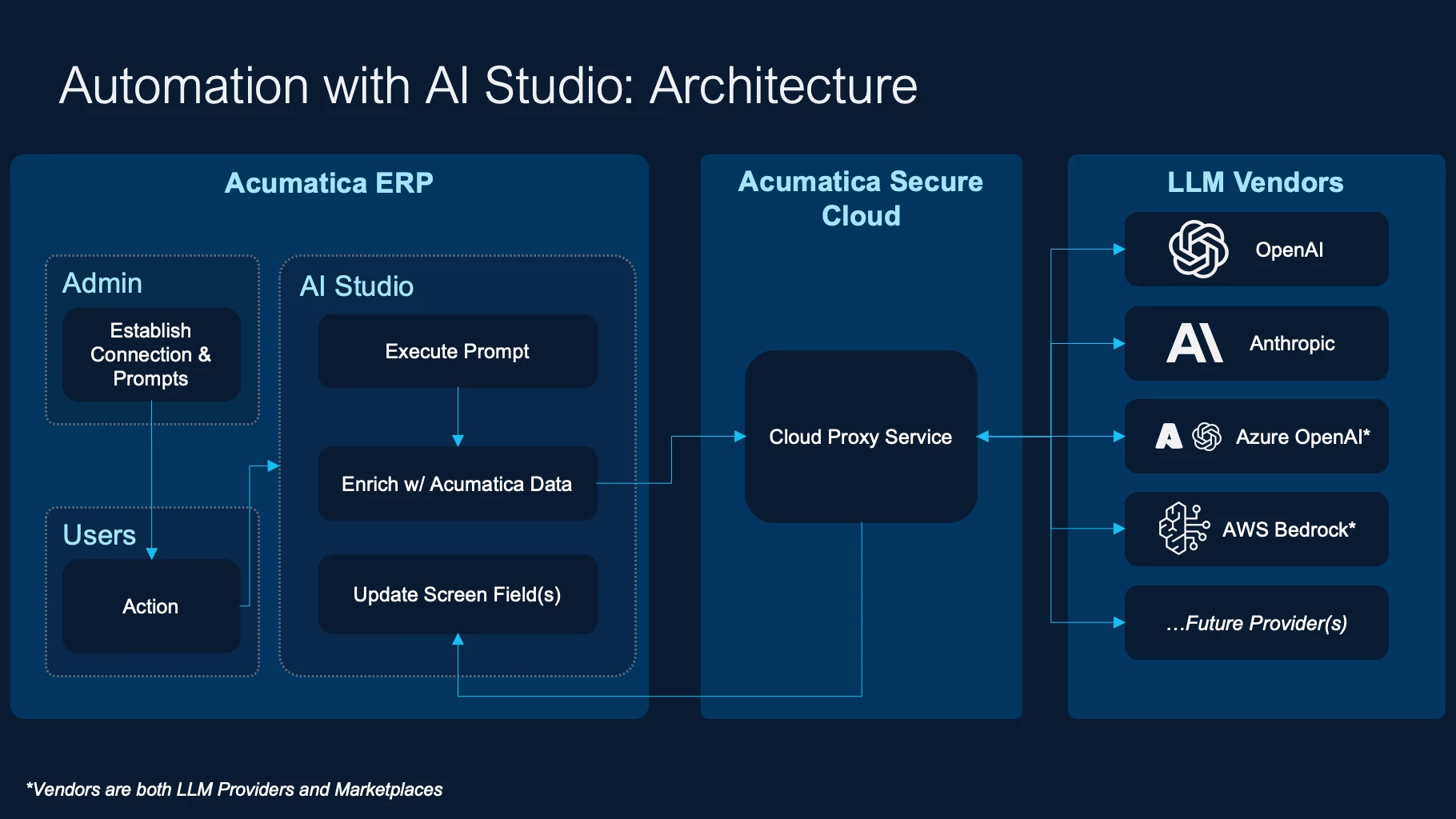
AI Studio communicates through the Acumatica Secure Cloud, a proxy server that forwards the prompt to the selected large language model (LLM) provider. The request and the AI response are transmitted securely between Acumatica ERP and the LLM provider. Below is a high-level architecture overview of AI Automation with AI Studio:
Are there any third-party vendors involved in the AI Studio processing? If so, what controls govern them?
Yes. Acumatica’s AI Automation with AI Studio with 2025 R2 only connects to external LLM providers selected by the customer.
- The customer establishes a direct relationship (API keys, terms, data use) with the provider.
- Acumatica acts solely as the integration platform, transmitting data securely via encrypted API calls.
- Acumatica does not access, broker, or store any data exchanged between the customer and the third-party provider at this time.
It is the customer's responsibility to configure the third-party AI providers’ controls properly.
Which LLM providers are supported in 25R2?
Acumatica 25R2 supports the following providers/marketplaces:
- Anthropic (LLM Provider)
- AWS (LLM Provider and Marketplace)
- Azure (LLM Provider and Marketplace)
- OpenAI (LLM Provider)
Will my specific data be used to improve Acumatica’s private models, or how will my data be aggregated and used for model improvement?
AI Automation functionality with AI Studio (as of 2025 R2) operates on a bring-your-own-LLM structure.
-
No customer data is currently used to train Acumatica generic models.
-
Customers choose which language model provider (e.g., OpenAI, Azure OpenAI, Anthropic, AWS) to connect with and the data they choose will only be shared with their selected model provider
Acumatica securely transmits only what the user authorizes and writes the response back into the ERP database.
In the future, if/when Acumatica releases its private models, it will follow our principles of innovation which protects customer identifiable data privacy. Any data used to train models will not contain customer specific data. Customers will have options to either use their own LLM provider, or Acumatica’s private model. Please note that enabling 3rd party private models may require special licensing, which may be optional. Customers will always have the ability to turn off Acumatica’s private model.
What is the risk of exposing our sensitive data via prompts or receiving data back in output? What kind of controls are in place to prevent this?
Customers decide which data fields to expose to their chosen LLM. To minimize risk:
-
Acumatica enforces existing access controls, user permissions, and audit logs before any data is transmitted.
-
Only authorized users can configure or execute prompts.
-
Prompt definitions can exclude sensitive or personally identifiable fields.
This ensures that any external exposure is intentional, controlled, and fully transparent to the customer.
Troubleshooting and Best Practices
Why did my AI Automation not update the expected fields?
Verify that the automation is active, the fields are eligible for update or deletion, and the prompt is correctly defined. Test with a sample record to review the generated prompt and response, and try again.
How should I phrase prompts for consistent results?
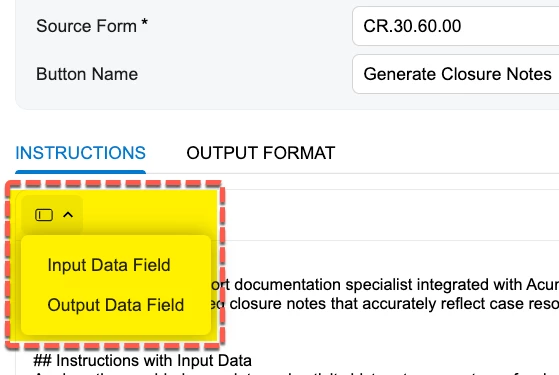
Use clear, specific, and concise instructions. Avoid ambiguous language and ensure the field names match the document’s terminology. For best results, use the Input and Output Data fields buttons
Why don’t I see any of the providers in the LLM Provider’s drop-down in the LLM Connections form?
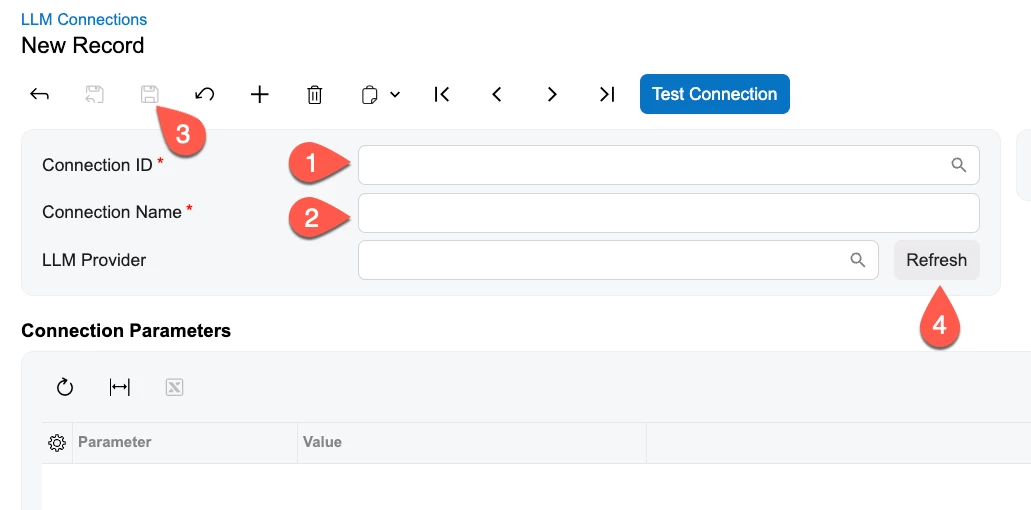
To create a new provider
-
Step 1: You first need to provide a connection ID
-
Step 2: Add a connection name
-
Step 3: Save the LLM connection
-
Step 4: Click Refresh next to the LLM provider menu so the system can dynamically create a list of the latest supported providers from the Acumatica Secure Cloud service.
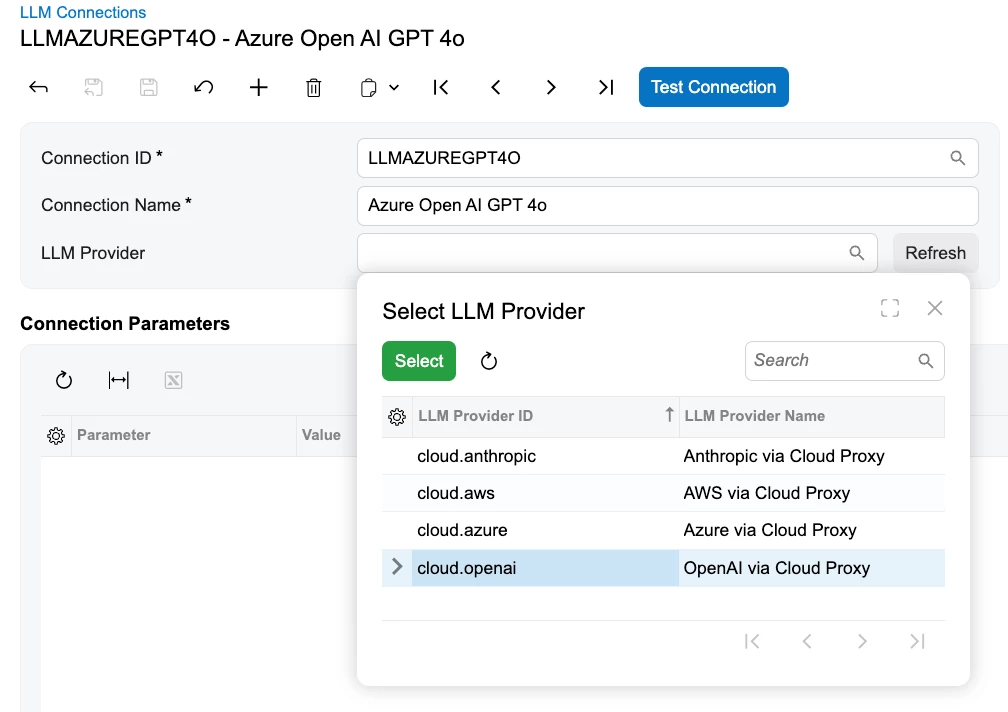
Once those steps are completed, the list of providers should appear.
How do I deactivate an AI Automation?
-
Deactivate automation by opening its configuration in AI Studio and disabling its active status. This prevents users from running the automation until it is re-enabled.