

Solved

Import Scenario Carriage Return

  • Mar 13, 2024 4:20 PM UTC
  • 2 replies
  • 207 views
  • Translate All

Forum|alt.badge.img

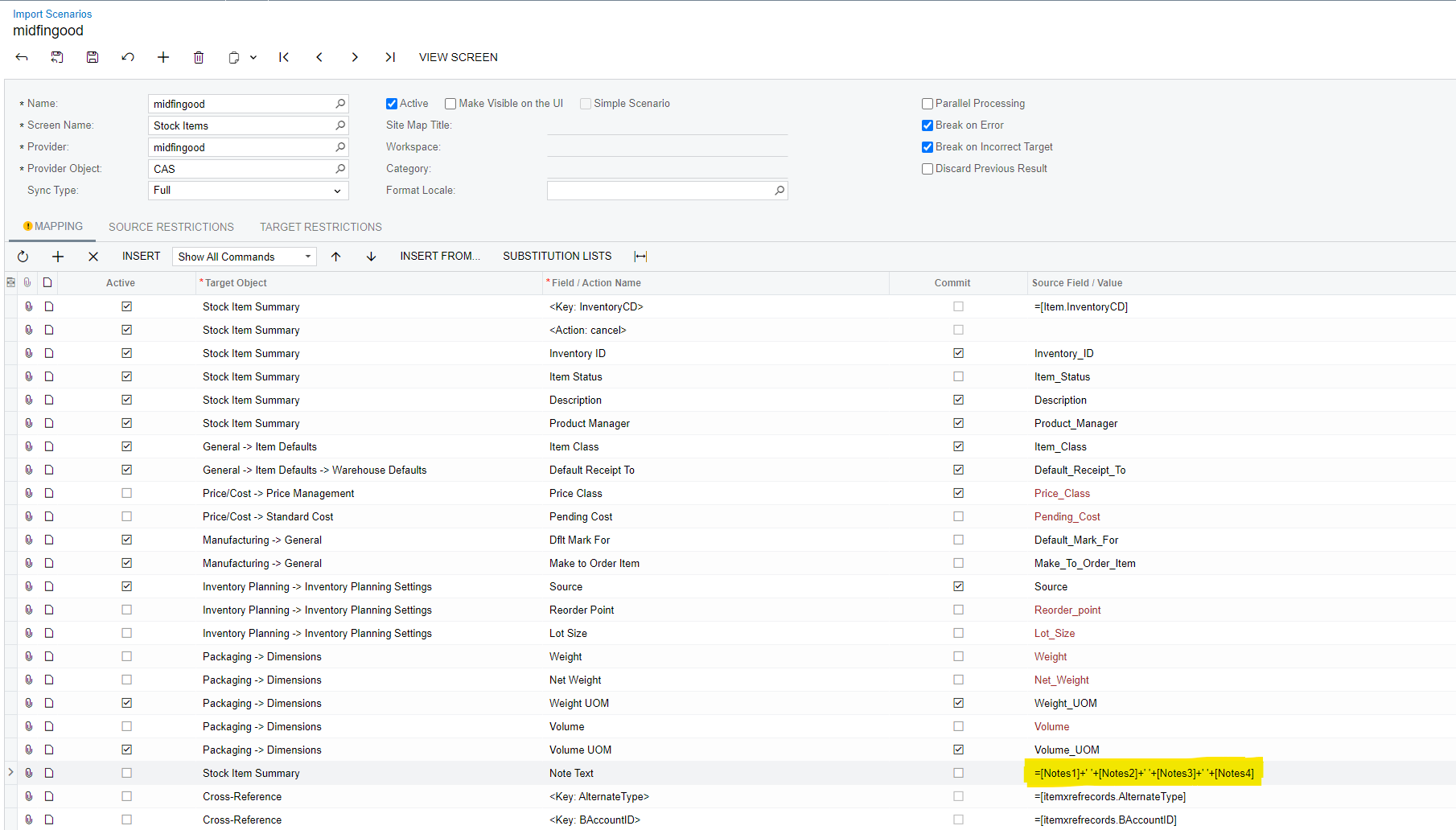
In an Import Scenario is there a way to call a carriage return? We are importing notes from our old system and would like them to appear in Acumatica on separate lines in the same Notes dialog box. We have the notes concatenating into a single line separated by spaces by using the command in the screenshot below, but could we call a carriage return in between each note to put them on separate lines?
 

Best answer by jturcotte

This could be done by appending a carriage return, ‘\r\n’, in between each of the notes instead of spaces.  You could continue with the addition of strings:

=[Notes1] + '\r\n' + [Notes2] + '\r\n' + [Notes3] + '\r\n' + [Notes4]

Or using the concat() function:
 

=Concat([Notes1], '\r\n', [Notes2], '\r\n', [Notes3], '\r\n', [Notes4])


View original

2 replies

  • Jr Varsity I
  • Answer
  • Mar 13, 2024 5:50 PM UTC

This could be done by appending a carriage return, ‘\r\n’, in between each of the notes instead of spaces.  You could continue with the addition of strings:

=[Notes1] + '\r\n' + [Notes2] + '\r\n' + [Notes3] + '\r\n' + [Notes4]

Or using the concat() function:
 

=Concat([Notes1], '\r\n', [Notes2], '\r\n', [Notes3], '\r\n', [Notes4])


Translate

Forum|alt.badge.img
  • Author
  • Jr Varsity III
  • Mar 14, 2024 9:05 AM UTC

This could be done by appending a carriage return, ‘\r\n’, in between each of the notes instead of spaces.  You could continue with the addition of strings:

=[Notes1] + '\r\n' + [Notes2] + '\r\n' + [Notes3] + '\r\n' + [Notes4]

Or using the concat() function:
 

=Concat([Notes1], '\r\n', [Notes2], '\r\n', [Notes3], '\r\n', [Notes4])


Works perfectly, thanks very much

Translate