Answer

How to reduce the gap between groups on a screen that was automatically adjusted

  • January 17, 2025
  • 1 reply
  • 71 views

Forum|alt.badge.img

After inserting an image into a column, the gap between the column and the grid increased. Can I manually change the gap between them?



Best answer by Md Kalim Ashraf

Hi rashmika,
To reduce the gap between groups after inserting an image, you can adjust the layout properties in the Customization Project Editor. Here's how, using the AR303000 (Customers) screen as an example:
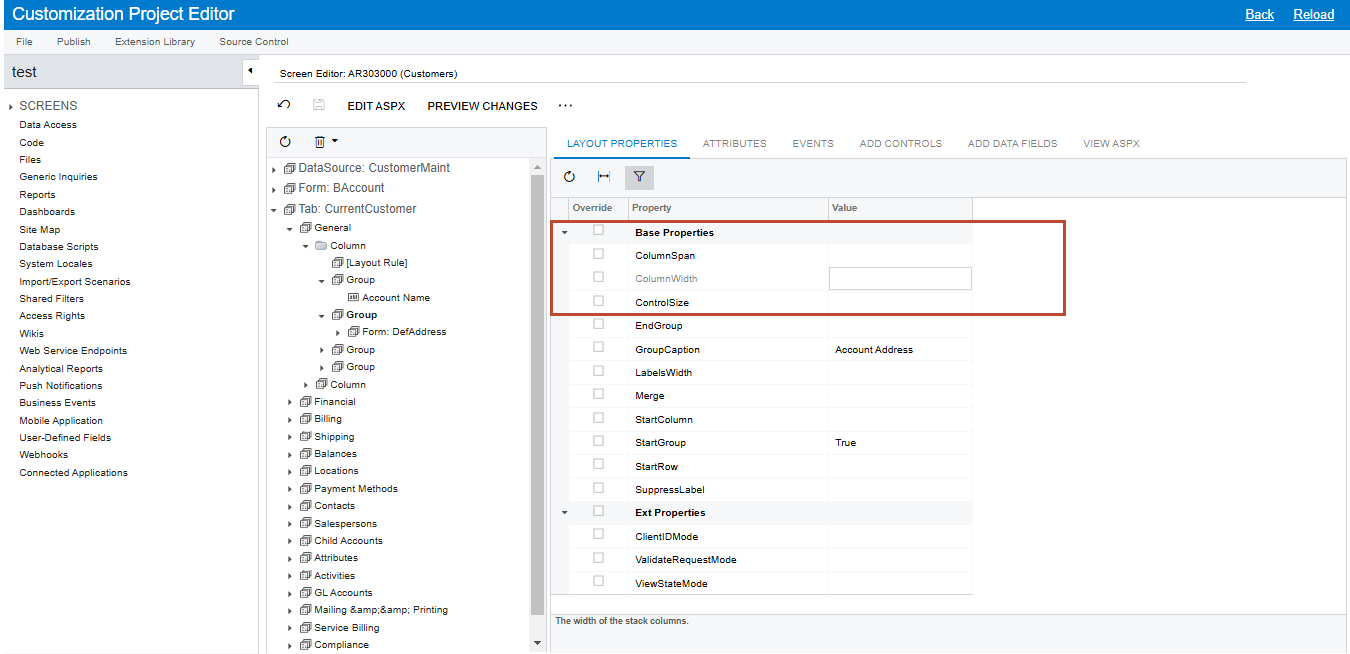
 

  1. Go to the Screen Editor > AR303000 (Customers)
  2. Select the Group or Column containing your image under the CurrentCustomer tab > General section
  3. In Layout Properties, under Base Properties, you can adjust:
    • ColumnWidth: Set this to "300px" or "400px" depending on your image size. This directly controls the column width and helps eliminate extra spacing.
    • ControlSize: Set this to "M" (Medium) for standard spacing or "S" (Small) if you need to reduce the spacing further.

Let me explain the available values for both properties:

ColumnWidth values:

  • Can be set in pixels, like "100px", "200px", "300px" etc.
  • Common values range from "100px" to "500px" depending on your needs
  • You can also use percentage values like "50%" or "100%"

ControlSize values (preset options):

  • XS (Extra Small)
  • S (Small)
  • M (Medium)
  • L (Large)
  • XL (Extra Large)

For example, in the Customer screen (AR303000), if you've added an image in the General section and notice increased spacing, you can select the Column or Group element in the layout tree and adjust these properties to achieve better spacing.

These settings should help maintain a compact layout while accommodating your image properly.

Note: If you need even finer control, you can also adjust the ColumnSpan property, though the ColumnWidth adjustment is usually sufficient for most cases.
 

1 reply

Md Kalim Ashraf
Jr Varsity I
  • Jr Varsity I
  • Answer
  • January 18, 2025

Hi rashmika,
To reduce the gap between groups after inserting an image, you can adjust the layout properties in the Customization Project Editor. Here's how, using the AR303000 (Customers) screen as an example:
 

  1. Go to the Screen Editor > AR303000 (Customers)
  2. Select the Group or Column containing your image under the CurrentCustomer tab > General section
  3. In Layout Properties, under Base Properties, you can adjust:
    • ColumnWidth: Set this to "300px" or "400px" depending on your image size. This directly controls the column width and helps eliminate extra spacing.
    • ControlSize: Set this to "M" (Medium) for standard spacing or "S" (Small) if you need to reduce the spacing further.

Let me explain the available values for both properties:

ColumnWidth values:

  • Can be set in pixels, like "100px", "200px", "300px" etc.
  • Common values range from "100px" to "500px" depending on your needs
  • You can also use percentage values like "50%" or "100%"

ControlSize values (preset options):

  • XS (Extra Small)
  • S (Small)
  • M (Medium)
  • L (Large)
  • XL (Extra Large)

For example, in the Customer screen (AR303000), if you've added an image in the General section and notice increased spacing, you can select the Column or Group element in the layout tree and adjust these properties to achieve better spacing.

These settings should help maintain a compact layout while accommodating your image properly.

Note: If you need even finer control, you can also adjust the ColumnSpan property, though the ColumnWidth adjustment is usually sufficient for most cases.