Solved

Grouping by the first two characters of ItemClass fails in Acumatica Report Designer

  • April 10, 2026
  • 3 replies
  • 21 views

Forum|alt.badge.img+6

Our Item Class has two levels, for example: 01-01, 01-02... 10-01, 10-02, 10-03... 90-01, 90-02.In reality, there are spaces in the value, the actual format is like 01 -01, 01 -02, etc.

In the Report Designer, I want to group data by the main Item Class. I used this expression in the Group settings:=Left(Trim([InventoryItem.ItemClassID]), 2)
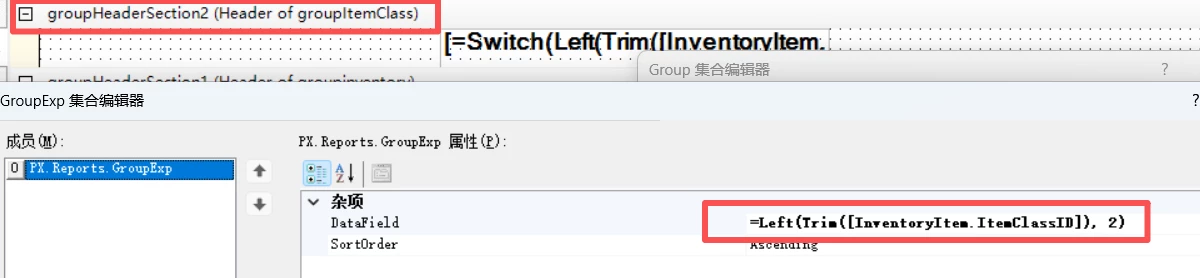
Strangely, most Item Classes are grouped correctly, but 01-01 and 01-02 are still split into two separate groups.

Moreover, I tested the condition Left(Trim([InventoryItem.ItemClassID]), 2)='01' and it returns True for both records, which is very odd.

What is the cause of this issue? Or if I need to group by the main class, what other methods can I try?


Best answer by Josiah Lisle

@ray20 Based on the information you have provided, I don’t see anything obviously wrong. Do you have any other groups or other conditions on the group you are using?

A few things I would suggest trying would be to try to replicate this in a GI, to give you more visibility on the values you are working with. You could also try joining to the Item Class table and use the ItemClassCD instead, but typically in report designer the ID should suffice.

3 replies

Forum|alt.badge.img+2
  • Jr Varsity I
  • Answer
  • April 10, 2026

@ray20 Based on the information you have provided, I don’t see anything obviously wrong. Do you have any other groups or other conditions on the group you are using?

A few things I would suggest trying would be to try to replicate this in a GI, to give you more visibility on the values you are working with. You could also try joining to the Item Class table and use the ItemClassCD instead, but typically in report designer the ID should suffice.


Forum|alt.badge.img+6
  • Author
  • Captain II
  • April 11, 2026

The issue has been resolved!I joined the INItemClass table and modified the group statement to =Left(Trim([INItemClass.ItemClassCD]), 2).I suspect there was an unknown problem with the system's automatic conversion of InventoryItem.ItemClassID. It’s labeled as an ID, but it actually displays the CD value on the screen, which is probably where the error occurred.


WillH
Semi-Pro I
Forum|alt.badge.img+4
  • Semi-Pro I
  • April 12, 2026

@ray20  I think it’s not really a problem, so much of a “how it works”. 

But I agree it’s confusing to learn how it works in the first place and could probably use more documentation.

Theory:

When you add a formula to the data field like that you’re interacting with the underlying called field (the ID)

The UI has smarts to say “I should display the CD instead of the ID”, but that’s processed as a layer on top of anything done in the actual data handling.

If you’re trying to manipulate data from a CD value, I’d always recommend joining the referred table explicitly and acting on it there, the other issue is just that any calculation that relies on the in built ID conversion slows the database calls down due to the way BQL queries things. (Since the joins don’t get optimized properly).  


It’s the same underlying reason you get warnings displayed in the Generic Designer if you try to use derived CD values like that in where clauses. (Which sometimes are referred to as ID, because the UII is trying to be clever for you)